Timeline: 3 hr
Team: Slavo
My Role: VFX Artist
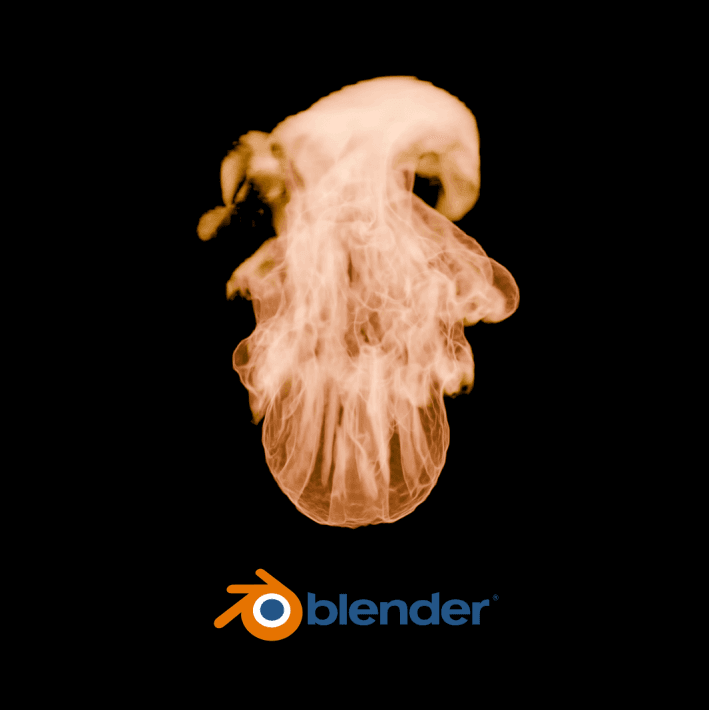
This simulation showcases dynamic flames and heat distortion. Optimized shading and physics bring a natural, high-detail look, making it ideal for VFX, animations, or game assets.
Bringing Fire to Life in Blender: My Journey
I sat down at my desk, opened Blender, and deleted the default cube—because, well, that’s always the first step. I wanted to create something alive, something powerful. Fire.
Laying the Foundation
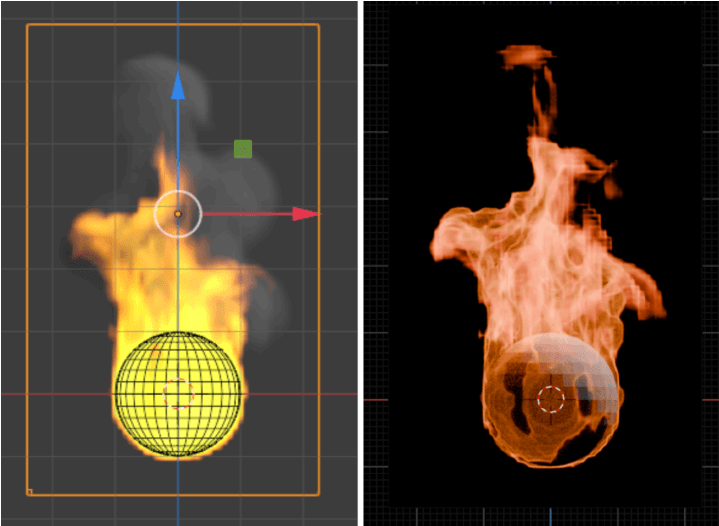
I started by adding a UV Sphere (Shift + A → Mesh → UV Sphere). It seemed like the perfect shape to emit fire naturally. I scaled it up slightly, ensuring it had enough presence in the scene. This was going to be my fire emitter.
Breathing Life into the Sphere
Next, I navigated to the Physics Properties tab and added a Quick Smoke effect. Instantly, a bounding box (the domain) appeared around my sphere. But I wasn’t after smoke—I wanted fire. So, I changed the Flow Type to Fire, and suddenly, things started to feel real.
Refining the Flames
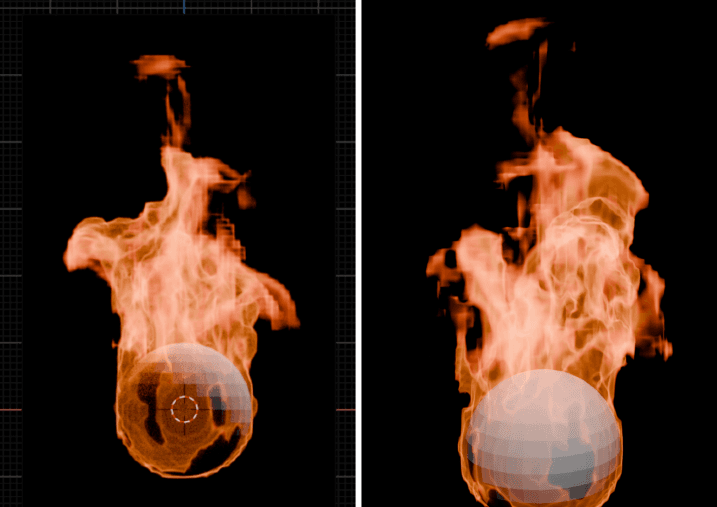
The fire looked weak at first, so I dived into the Domain Settings and cranked up the Resolution Divisions to 128 for more detail. Then, I played with Vorticity, setting it around 0.8 to add more chaos to the flames. I also enabled Dissolve to make sure the fire wouldn’t linger unnaturally.
The Magic of Shading
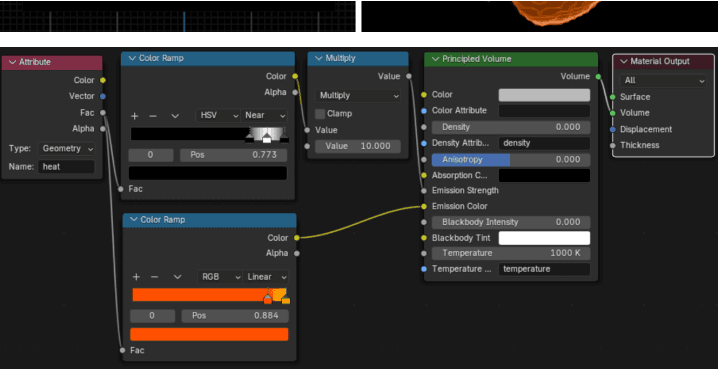
With the physics in place, it was time to make the fire look real. I switched over to the Shading Workspace, selected the Domain Cube, and created a new material. Instead of a traditional shader, I added a Principled Volume Shader and connected it to the Volume Input of the Material Output node.
I adjusted the Blackbody Intensity and set the Temperature to around 1000K, which gave me those deep orange and red hues. The moment I tweaked these settings, my fire started glowing—looking almost untouchable.
Baking the Simulation
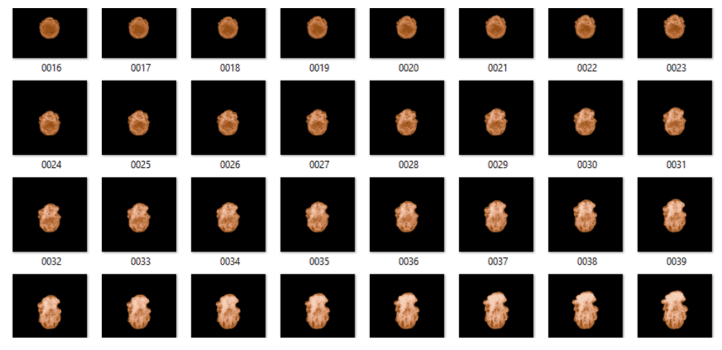
Now came the most crucial part: baking the simulation. I went into the Cache settings, switched to Modular, and hit Bake All. My computer fan spun up as Blender calculated every wisp of flame, every swirl of smoke. I waited. A few minutes later, the fire was alive, flickering and roaring in the viewport.
Setting the Scene
I positioned a Camera at a dynamic angle, adjusting the focal length to give it a cinematic feel.
Rendering the Final Piece
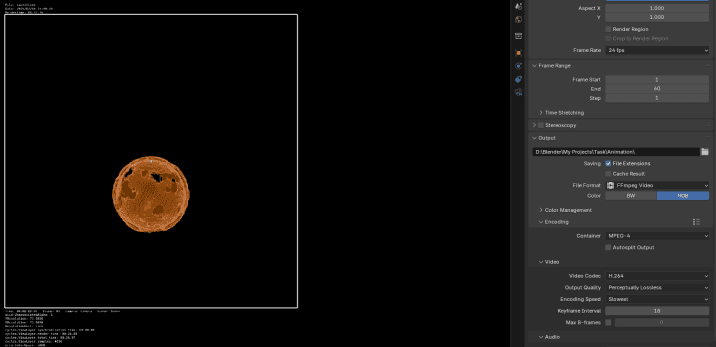
Finally, it was time to render. I switched to Cycles, set the max samples to 4096 for a balance of quality and speed, and enabled Denoising to keep things clean. Under Output Properties, I chose FFmpeg Video with MPEG-4 encoding—perfect for a smooth final animation.
With a deep breath, I pressed Ctrl + F12. As each frame was rendered, I watched my fire come to life, swirling, consuming the air, and dancing with raw energy.
I had created fire. 🔥